A calendar that reminds you when to leave.
See what’s coming up, check the weather, and allow time for the journey. PlannexPro reminds you before you need to leave, giving you time to get ready. If an appointment changes, just drag it to a new time.
PlannexPro for macOS · coming soon to the Mac App Store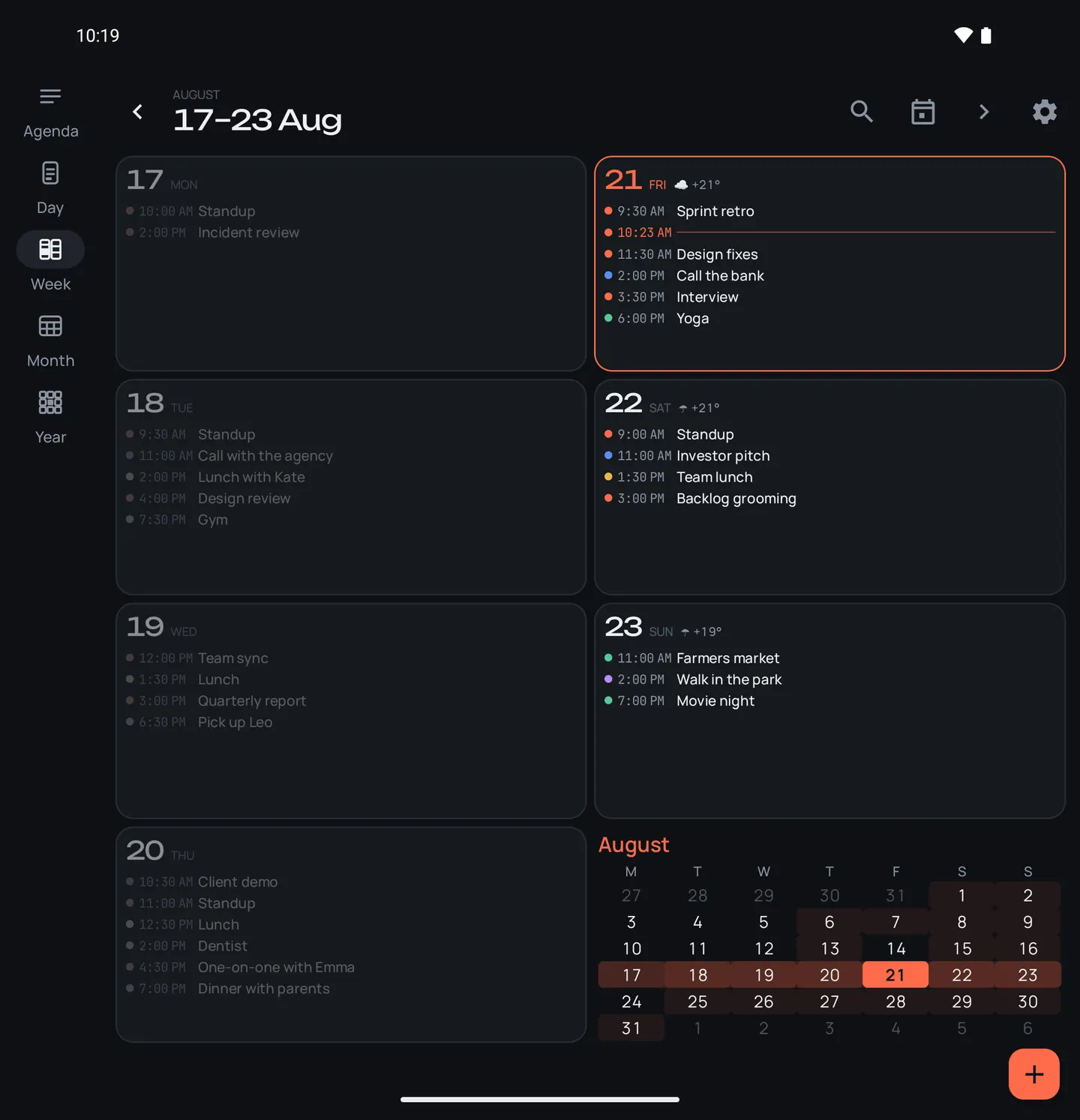
Getting there is part of the plan
Knowing when an appointment starts is useful. Having time to get there helps too. Add the address, and the calendar allows for the journey, parking, and any extra time you’d like before setting off.
A reminder when it’s time to leave
Choose whether you’re walking or driving and give yourself a little extra time. The app works out when to leave, allowing for the journey, traffic, and parking.
Traffic and travel times from Google MapsKnow whether to bring an umbrella
The forecast sits beside your appointment. While looking through your plans, you can check the temperature and see whether to expect rain on the way.
Temperature and rain for the hour of your appointmentYour usual calendars, without another account
Work and personal events stay in the calendars on your phone. PlannexPro brings them into one view, with no sign-up needed for everyday calendar use.
An account is used for voice features, Todoist, and transferring settingsMore room when you have a bigger screen
Open your Fold or use a tablet to see more of your plans at once. On a Flip’s cover screen, you can check your next appointment without opening the phone.
For phones and tablets running Android 10 or laterFrom your next appointment to the whole year
Check your upcoming plans in the morning, look at the week to arrange a meeting, or open Month or Year to plan a holiday. Choose the view that helps with what you’re planning now.
Agenda
Open it in the morning to check your upcoming plans and the weather.
Day
See your day hour by hour and move appointments right here.
Week
Find space for an appointment among your plans for the week. Choose two columns or seven.
Month
Check which days are already busy before making new plans.
Year
Think ahead to holidays and other big plans with the whole year in view.
Check your plans without opening the calendar
Sometimes you just want to know when the next appointment is. There are eight widgets to choose from, including a small calendar and an appointment with a map. Pick one and adjust its theme, transparency, and text size.
What else might you need during the day?
Connecting a work calendar, adding an appointment by voice, remembering a task — here’s a closer look to help you decide whether the app is right for you.
Appointments, calendars, and search
- View the calendars already connected on your phone in one place, including Google, Microsoft, Yandex, Mail.ru, Yahoo, and CalDAV.
- Add an address, a note, and attendees to an appointment. A color or emoji can make it easier to find among your other plans.
- Set one or two reminders, and allow time for the journey if you’re meeting away from home or work.
- For a recurring appointment, you can edit a single occurrence or all future appointments in the series.
- Find an appointment by title, place, or attendee. You can import an invitation from an .ics email attachment without creating duplicates.
Travel, weather, and reminders
- The app remembers the route to a familiar place and your extra time for parking, so you don’t have to enter them each time.
- Check the address and route in the appointment, in a widget, or in the reminder — wherever you’re looking at your plans.
- From a reminder, you can open directions, join an online meeting, or make a phone call.
- If small notifications are easy to miss, turn on a larger reminder that appears over the lock screen.
- For the weather forecast, you can choose a city or allow access to your approximate location.
Voice, Todoist, and transferring settings
- Say something like ‘Move the dentist to Thursday at three.’ Before saving, you can check what the app understood and make any corrections.
- Todoist tasks appear alongside appointments, so it’s easier to remember them while planning your day.
- Sign in with a code sent to your email, or with Google or Yandex. There’s no extra password to remember.
- An account is needed for voice features, Todoist, and transferring settings to a new phone.
Appearance and preferences
- Choose a light, dark, twilight, or true-black OLED theme — whichever feels more comfortable to read.
- Use a preset palette, choose colors yourself, or take them from your phone’s wallpaper.
- Adjust the font and animations. If movement on the screen distracts you, you can turn animations off.
- Set your working hours and the first day of the week, and choose how closely rows sit together.
- The calendar is available in 44 languages, supports right-to-left text, and follows the text size you’ve chosen on your phone.
Tablets and foldables
- A larger screen keeps more information side by side, so you can spend less time switching between sections.
- On phones, tablets, Fold, and Flip, the calendar adjusts its layout to the screen’s size and shape.
- On a Flip’s cover screen, you can check your next appointment, free time, a reminder to leave, or a week or month view.
Data and permissions
- Events stay in the calendars on your phone. The app doesn’t copy your schedule to its own servers for everyday calendar use.
- Permissions are requested when you start using a feature that needs them.
- Weather and routes can use your approximate location.
A few things you might be wondering
Where can I download the app?
The open beta is available on RuStore, an Android app store. A direct APK download is planned a little later.
Will the app stay free?
There is a free tier: the calendar, five schedule views, reminders and moving meetings, at no charge. The full set of widgets, voice input, custom themes, AI analysis and sports calendars come with the Pro subscription — 249 ₽ a month or 1490 ₽ a year.
Do I need an account?
You don’t need an account to use the calendars on your phone. You’ll need to sign in if you’d like to use voice features, connect Todoist, or transfer settings to a new phone.
Where will my events be stored?
In the calendars you already use. The app works with them on your phone and doesn’t keep a separate server copy of your schedule.
What should I expect from the open beta?
I’m still working on the app, and you may come across bugs. If something doesn’t work as expected, please email me — hearing what happened helps me look into it.
Will it work on my phone?
The app runs on Android 10 or later and supports phones, tablets, and Fold and Flip models.
How can I get in touch?
Telegram is quickest: @PlannexPro for app news, @Plannexpro_bot for questions, bug reports and feature requests. Email works too — support@plannexpro.app.
Give it a try with your own plans
Install the app and open the calendars you already use. See how it feels to plan a day, move appointments, and check your widgets. I’d love to hear what works for you and what’s still missing.